Thursday, January 16, 2014

Sony’s new Background Defocus feature on the Xperia Z1S is gorgeous, when it works

Leave a Comment
sony-backgrounddefocus
Sony made quite a few exciting announcements this week at CES, but hidden among the bigger releases was Background Defocus, a tiny camera app that will make your photos look amazing.
The feature will start out as an exclusive for T-Mobile’s upcoming Xperia Z1s, which goes on sale in the US later this month. Still, I’d expect Sony to bring Background Defocus to other Xperia phones after some time has passed.
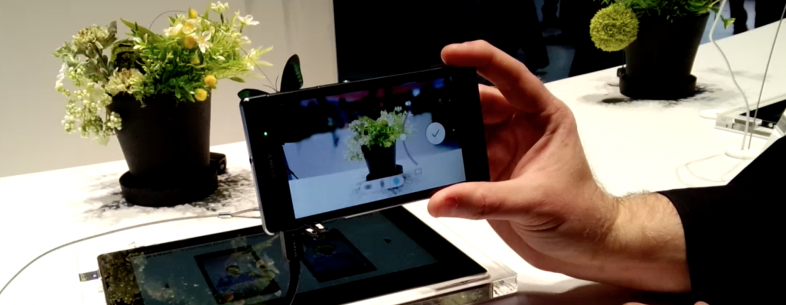
Here’s the feature in action, as demoed by a Sony rep:
To use Background Defocus, you choose a focus point and then tap the camera button. After some processing, you’ll be able to set the amount of blur you want and whether you want additional distortion. Behind the scenes, the Xperia Z1s is actually taking two separate photos at different exposures in order to let you blend in the blur. The feature reminds me a lot of how HDR works, just for a different purpose.
The Xperia Z1 line already includes a fantastic camera, but optical limitations have prevented even the best cameraphones have struggled with producing the much-coveted bokeh effect that you can get from DSLRs and other standalone shooters.
The Xperia Z1s also includes the suite of Sony’s other smart camera apps, such as Info-Eye, Timeshift Burst, Social Live and AR Effects.
Unfortunately, Background Defocus requires very specific framing and lighting, so you won’t be snapping selfies on the fly with it. Sony recommends you stand about two feet away from your subject and frame it so the background is at least three feet behind it. When I tried the Z1s at the Sony booth, the phone flashed errors in most situations outside of the demo setup.
New customers switching over to T-Mobile will have a nice little feature to play with if go with the Xperia Z1s. The rest of us will have to stick to our photo editing apps to recreate the effect.
[Read Further...]

Wednesday, January 15, 2014

Google confirms it will shut down goal sharing service Schemer on February 7

Leave a Comment
bucket-list
Google has confirmed it is shutting down its goal sharing service Schemer. The company says Schemer’s last day will be February 7, after which all data will be permanently deleted. The iOS app has already been pulled from Apple’s App Store while the Android app on Google Play hasn’t been updated since October 2012.
A leak late last year first suggested Schemer was next on Google’s chopping block. Google Operating System posted a screenshot of an internal version of the Schemer site, which stated the following: “Schemer will be shut down on [insert date]. We had launched over a year ago to help people to do more awesome stuff, and it has been quite an adventure for us as well! However, we have come to the difficult decision to shut down Schemer. Your schemes will be available for download until [insert date].”
Now the date has been filled in. If you’ve been using Schemer, you have less than a month to download your schemes.
To do so, follow these steps:
  1. Sign in to schemer.com using your Google account.
  2. Select “Email me my schemes” at the top of the page.
  3. Your data will be delivered to your Gmail account within 24 hours of the request. You will receive an email from noreply_announce@schemer.com that contains two attachments of the exact same data in two different formats: CSV and HTML. Choose the format that works best for you and download accordingly.
For those who don’t know, Schemer arrived in December 2011. It let users discover new things to do, share schemes with friends, and “make the most of your day.” Schemer required a Google+ account but wasn’t promoted by Google, which quietly stopped updating it many months ago.
Google recommends two alternatives to Schemer users: the “Explore” section on Google Maps for Android and iOS for finding interesting things to do nearby andField Trip to uncover unique things in your city. Both are great for discovery, but neither offer a goal-oriented experience.
For reference, the full Schemer discontinuation announcement reads as follows:
The time has come for Schemer to power down.
Schemer launched in beta over a year ago to help inspire and motivate people to do more awesome stuff, and though the app is shutting down, the adventures will continue. You can use the “Explore” section on Google Maps for Android and iOS to find interesting things to do around you, or Field Trip to uncover hidden or unique things in your city, among others.
All your schemes are available for download until February 7, 2014, after which all data will be permanently deleted. Follow these simple steps: https://support.google.com/schemer/answer/4427755
In the meantime, stay curious, ambitious, daring, and above all, stay adventurous; thank you for all your support on this journey!
-The Schemer Team
[Read Further...]

Tuesday, January 14, 2014

Make your Android device a whole lot smarter with these handy apps

Leave a Comment
BRAZIL-MOTOROLA-MOTO G
The leap from feature phones to smartphones didn’t happen overnight. Slowly but steadily, our phones grew smarter and smarter until they’d become capable enough that we could fulfil most of our computing needs on these pocket-sized devices. The onset of powerful third-party apps spurred that progress into overdrive, so much so that most of what we do on our phones these days isn’t even possible on the full-size desktop computers they are derived from.
In this series of two articles, I’ll take a look at six Android apps that allow you to insert your own brand of customised artificial intelligence into your phone. I’ll go into detail about how to set up and use each of the following apps and provide examples of real life usage scenarios to help get you started. These apps range from the very simple to the pretty complex—but fear not, enterprising mobile warrior, because I’m here to guide you every step of the way.
(Regular readers of TNW may note that the apps in this list are a subset of our “40 Must-Have Android Apps for the Power User”. This is by design. While the previous article only briefly summarised each app’s functions, this one goes into detail about the ones that have to do with automation and includes instructions on how to set them up and use them.)
First up, Gravity Screen…

Gravity Screen

Let’s start with Gravity Screen.
Throughout the day, you take your phone out of your pocket countless times, whether it be to check your email, respond to that message you just received, dial a call or even just check the time. Isn’t it bothersome to have to press that power button every time you do so and press it again before you put it back? Gravity Screen can take care of that trivial everyday annoyance for you.
The way it works is that it detects when (a) your phone is either oriented upside down or placed face down; and (b) its proximity sensor is covered. If both conditions check out, it will turn off the display for you. Reverse the conditions, and voila, it will turn it back on!
As long as you’re willing to change your habits with regard to how you store your phone—upside down in your shirt or pants pocket and face down on flat surfaces—Gravity Screen works with 100% accuracy with the default settings and consumes minimal battery. On my phone, it does not even show up on the battery usage statistics screen.
Gravity Screen 1 220x366 Make your Android device a whole lot smarter with these handy apps
Gravity Sensor’s pocket and table sensor features enable it to automatically turn your screen on/off based on whether or not it’s being used.

Gravity Screen 2 220x366 Make your Android device a whole lot smarter with these handy apps
The permanent notification helps the app remain awake more reliably in the background and gives you a convenient way to pause its functionality.
If you’d rather not keep your phone face down, there is a setting that’ll allow it to detect when the phone is placed face up on a flat surface, but it consumes more battery that way and it gets annoying to have to pause the app (which you can do by tapping on its permanent notification) when you want to use the phone on a bed or table. In this mode, the app will also turn on the screen if anything accidentally passes over the proximity sensor, which annoys me no end.
Other features of the app include the ability to “keep the screen on by motion”. With this feature enabled, you can set your screen’s timeout to a very low setting (say, fifteen seconds), but while you’re actively using it, Gravity Screen will detect the tiny motions of your hand and keep the screen awake. When you place the phone on a stationary surface, it will allow the timeout to function. I found this feature to be an unnecessary waste of battery life and prefer to simply keep the timeout to a respectable two minutes, but you may want to give it a shot.
The following are the Gravity Screen settings that I have arrived at after a little trial and error, and that work best for me. Feel free to use them as a guide when setting it up for your own usage:
  • Pocket Sensor: 60º
  • Any Direction: N
  • Table Sensor: 35º
  • Lying Face Up: N
  • Turn Screen OFF By Proximity: Y
  • Turn Screen ON By Proximity: Y
  • Turn Screen ON By Motion: Y
  • Timeout: 10 min
  • Sensitivity: 15
  • False Turn-On Protection in Pocket: Y
  • False Turn-On Protection in Hand & Car: Y
  • Keep Screen ON by Motion: N
  • Alternative Proximity Method: N
  • Alternative Turn Off Method: N
  • Vibration: N
  • Headphone Support: N
  • Disable Screen Lock: N
  • Notification: Y
  • Start at Boot: Y
Available for free from the Play Store, the lite version performs well and has almost all the features of the paid version, with a few minor exceptions. Like the developer himself says, “In the Pro version the screen can be turned on by motion up to 16 hours instead of 15 minutes. Also, in the Pro version the Table sensor is more accurate.” I use the pro version myself and highly recommend that you pay the $1.50 upgrade fee if the free version works well for you.
➤ Gravity Screen [Free / Pro]

SpeakerPhone Ex

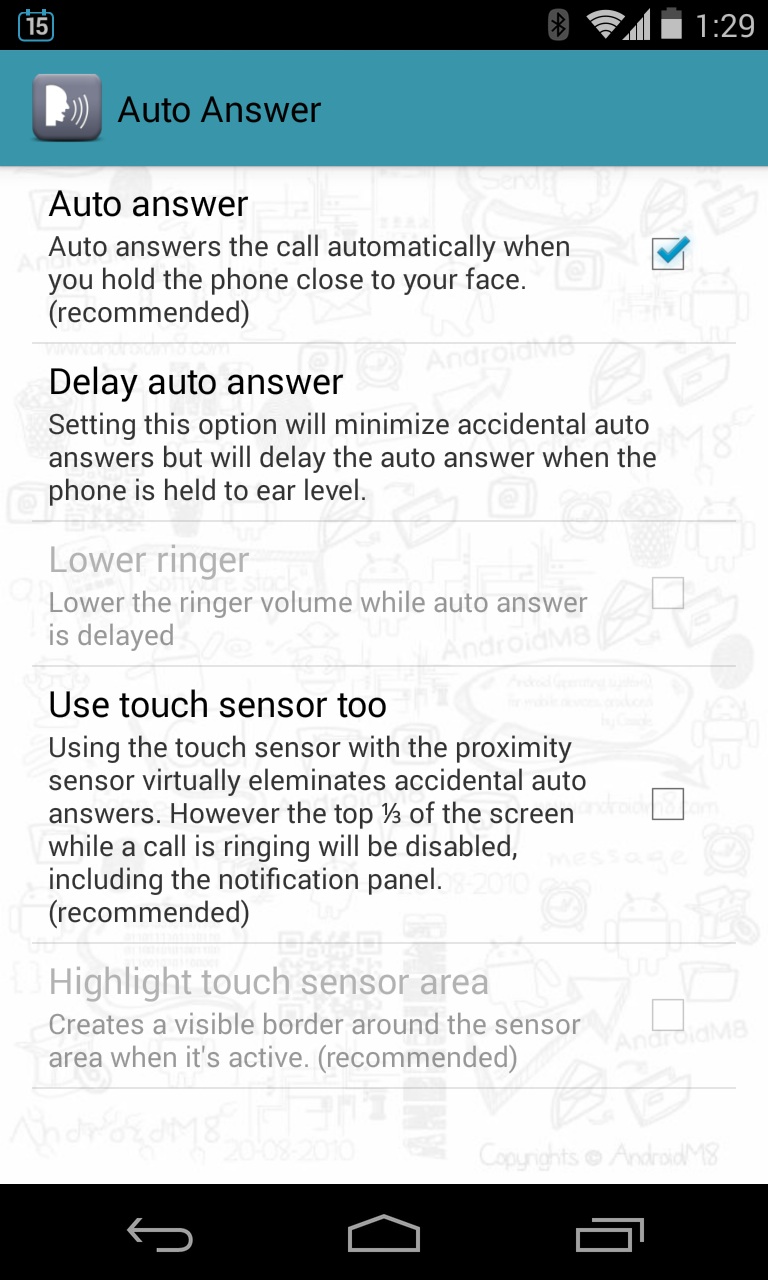
Next up is SpeakerPhone Ex. In the same vein as the previous app, SpeakerPhone Ex intends to solve one small everyday annoyance of using a phone and does it exceedingly well. Yes, your phone turns itself on when you take it out of your pocket, but why do you have to manually answer incoming calls before you bring it up to your ear? SpeakerPhone Ex makes it possible to answer incoming calls just by performing that action.
Answering calls based on sensor input is risky business, so it is important that the app is reliable. In my several months’ experience of using this app, I’ve had fewer than five times when the phone was accidentally answered before I’d intended it to. For the most part, it works great, especially if you take to stowing your phone in your pocket upside down (as you need to for using Gravity Sensor).
The app is intelligently designed and the default settings are well considered. My only recommendation is that you enable the “Stop auto answer face down” setting in the “Stop When” section of the app’s preferences.
SpeakerPhone Ex 1 220x366 Make your Android device a whole lot smarter with these handy apps
SpeakerPhone Ex will automatically answer and hang up calls, and even manage the speakerphone state while a call is in progress.

SpeakerPhone Ex 2 220x366 Make your Android device a whole lot smarter with these handy apps
The delay and touch sensor options make it harder for it to trigger accidentally in your pocket, but aren’t necessary on most phones.
SpeakerPhone Ex also has the ability to manage your speakerphone for you. It will automatically turn on the speakerphone if you bring the phone away from your ear during a call and silence it when you reverse that action. If you manually intervene, it will stop automatically toggling it for you for the duration of that call. There are various delay options built in to guard your privacy. I have set it to delay switching speakerphone on by 1.5 seconds, which gives me enough time to change between ears during calls and to disconnect them after I’m done without the speaker turning on.
The paid version of the app adds several more features, among which is the ability to automatically hang up calls when the phone is placed face down (but it’s missing a pocket detection feature, like Gravity Sensor, which would’ve made this particular feature significantly more handy), various call related alerts (which I don’t find useful) and the ability to “fine tune the auto answer functionality, to minimize accidental answers”. Again, it is well worth the $1.50 purchase.

Nights Keeper

Moving on from the core functionality of using a phone, there’s a free app calledNights Keeper that makes it possible for you to get a good night’s sleep while it manages your incoming calls, messages and other notifications for you. And when I say “manage”, I mean it shuts them up until absolutely necessary, so you’re only disturbed if something more important than your rest comes calling.
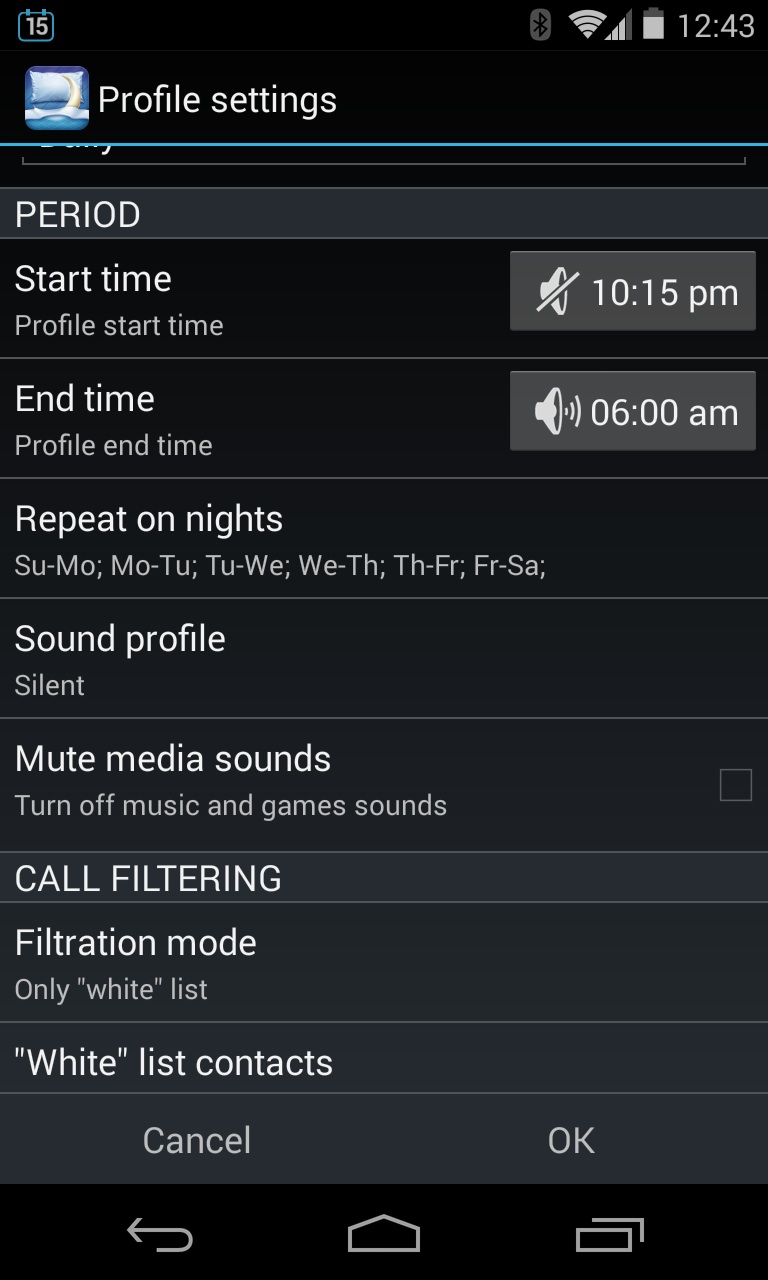
Nights Keeper will allow you to schedule a profile that activates at a set time every night (or on days of the week you specify) and deactivates on the morning after. It will silence your phone entirely—muting all phone calls, notifications and media sounds—and turn off vibration, but will keep an eye out for urgent calls.
Nights Keeper 1 220x366 Make your Android device a whole lot smarter with these handy apps
Nights Keeper will start its profile at a scheduled time each day and screen all but your most urgent calls for you.

Nights Keeper 2 220x366 Make your Android device a whole lot smarter with these handy apps
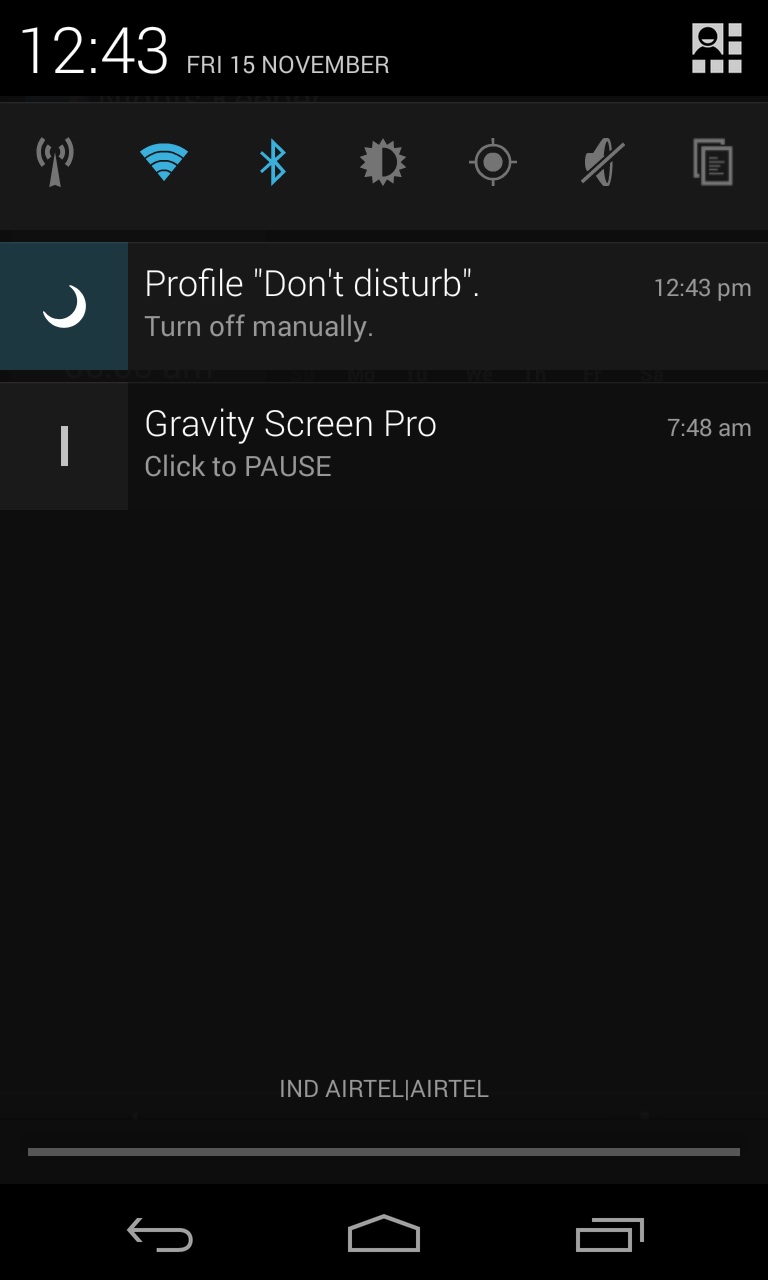
It displays a permanent notification while a profile is active, so you can turn it off manually if you wake up early.
If you get a call from someone, it will automatically screen it and send them a text message of your choosing. But if they keep calling you repeatedly, it will eventually allow them to get through. You can configure how many screenings one has to go through before the phone will ring (it’s set to two missed calls on my phone) and set up a whitelist of contacts who can always get through to you on the first try.
Other features of the app include the ability to reduce brightness, turn off auto sync, Wi-Fi, Bluetooth and your mobile network at night and re-enable them in the morning, but I find myself having no use for them. There are also a bunch of other settings you can configure and a widget you can use to quickly activate the night profile at any time irrespective of the set schedule.

Shush!

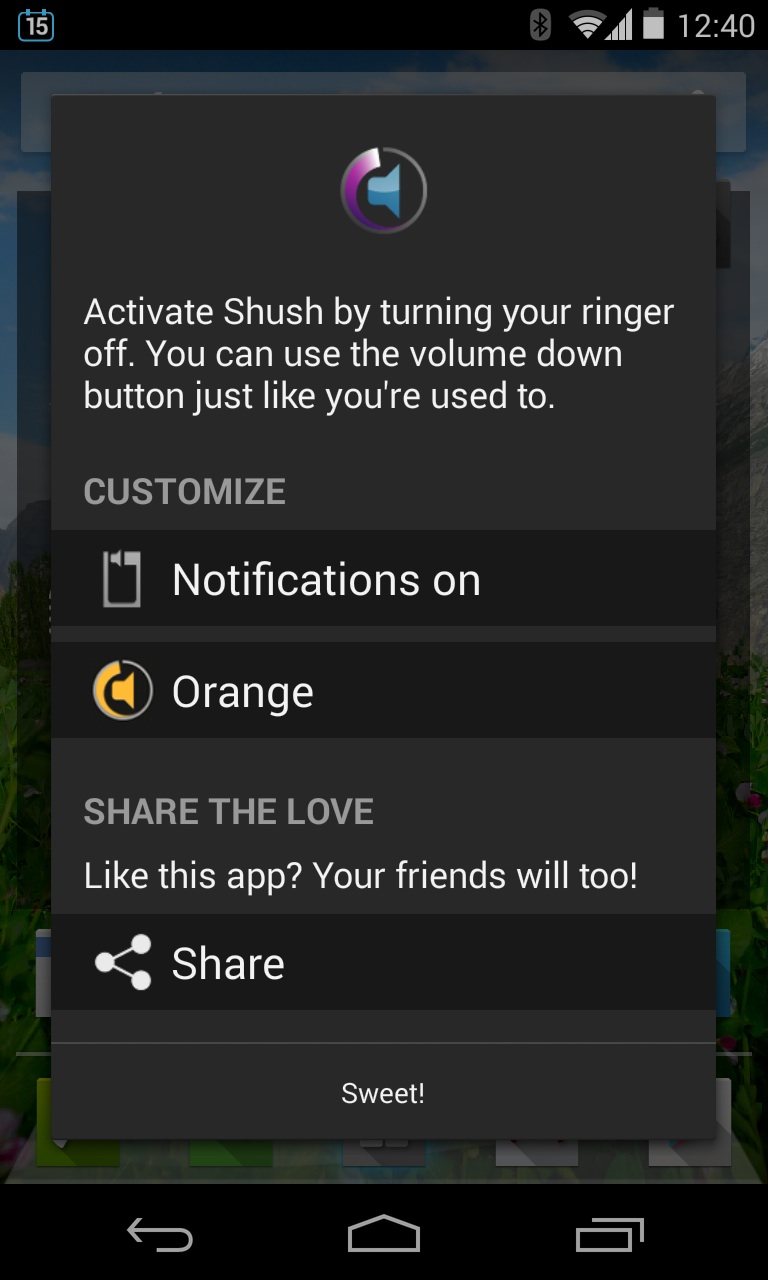
Perhaps the simplest app on this list is Shush!, but it is also the most universally useful. You may or may not find the other apps here simple enough or relevant enough for you, but pretty much every Android user would benefit from having Shush installed.
When you go to a hospital or a movie and silence your phone, you never have to remember to turn it back on again after you leave. Shush throws up a simple dialog asking you how much time you need the phone to be silenced for when you flip that switch and you can either tap on a button to silence it indefinitely or set it to any time in fifteen-minute increments.
Shush 1 220x366 Make your Android device a whole lot smarter with these handy apps
The simple preferences screen of Shush allows you to change the highlight colour and turn it on or off.

Shush 2 220x366 Make your Android device a whole lot smarter with these handy apps
Shush pops up when you put the phone into silent or vibrate mode and allows you to set a timer on when it expires.
When silenced, it will show up as an ongoing notification, letting you know at what time the silent period ends. At any point, you can tap on the notification to restore the original volume of your phone. The only bug with the app is that it never restores the vibration setting and I’ve contacted the developer to try to get it fixed. Besides that, Shush is an excellent app and can be yours for the low price of free.
➤ Shush!

Unlock with WiFi

Given the volume of sensitive data we store on our smartphones, it is essential that they be impenetrable if they fall into the wrong hands—and yet, no one wants to sacrifice convenience on the altar of security. The solution is provided by Unlock With WiFi, an Android app that keeps your device protected against unauthorised access by a PIN lock, but gets rid of it when it isn’t necessary.
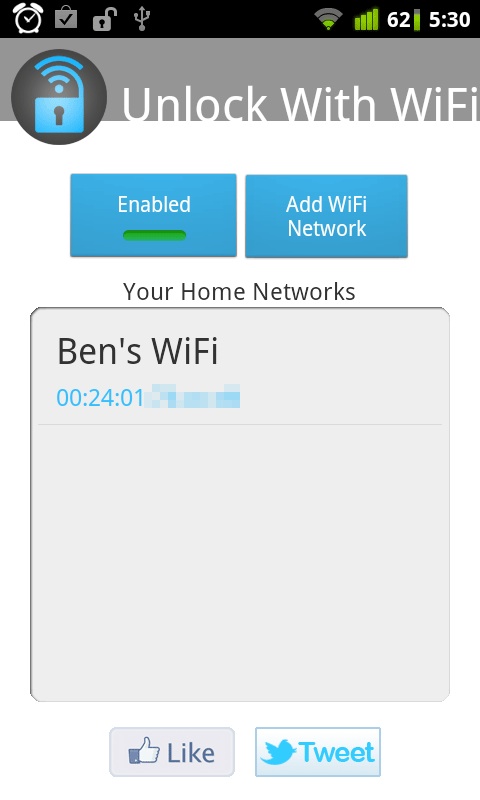
Unlock With Wifi maintains a list of trusted WiFi networks and automatically removes your PIN lock when your Android device is connected to them. Step out of your home or office and it promptly re-enables the authentication screen, so your data is protected if the phone falls into the wrong hands.
Once you install the app, it’ll ask for device administrator privileges, which it needs to work its magic. After you grant that, you can no longer uninstall the app until you revoke that permission. For this reason, if you ever wish to uninstall it, you should do so from within the app itself.
Unlock With WiFi 220x366 Make your Android device a whole lot smarter with these handy apps
Unlock With WiFi automatically unlocks your phone on trusted wireless networks.

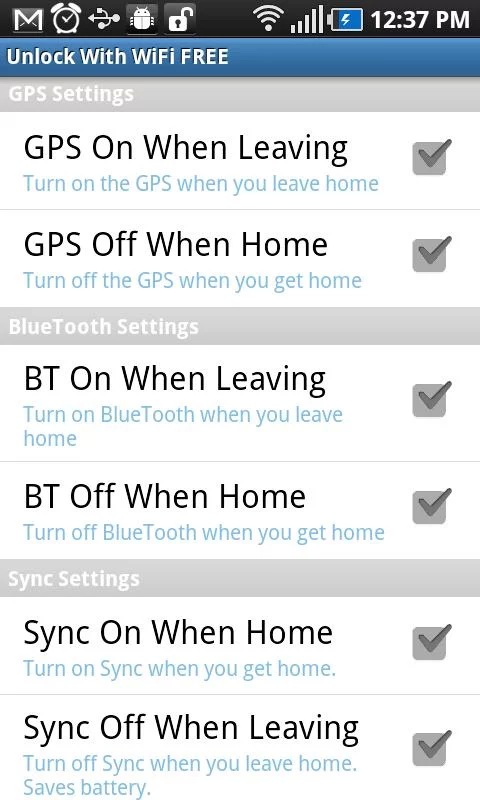
Unlock With WiFi 2 220x366 Make your Android device a whole lot smarter with these handy apps
It includes options to automatically toggle Auto Sync, Bluetooth, GPS and WiFi.
Add your favoured wireless networks to its list and set up a PIN lock to get started. The app uses the standard Android lock screen, so you do not lose any functionality on that front, but you cannot change the PIN code from the system settings app anymore. Unlock with WiFi also gives you options to automatically turn off WiFi when you leave a trusted network and turn on Bluetooth, GPS and other settings. I found no use for those features, but the core feature itself is worth the $4.00 price of entry.
Unfortunately, Unlock With WiFi does not work with Bluetooth and does not support the face and pattern unlock features, but on the positive side, it does not need a rooted device to function either. Also, it does need you to enter your PIN code once when you enter trusted wireless zones before the lock screen is removed. Give the free four-day trial version a run before you jump in with both feet.

For those keeping count, that’s five out of the six apps I’d promised at the beginning. The sixth app in the list deserves an article all its own and we’ll be posting that soon. In the meantime, try playing around with the apps above and feel free to chime in with your questions, suggestions and thoughts in the comments below.
[Read Further...]

Runnit: This iPhone app rewards you for running

Leave a Comment
girl_in_park
There’s no shortage of GPS fitness-tracking apps. Now, however, Runnit for iPhone wants to reward you with discounts, free products and “exclusive content” every time you pound the pavement. The app is available to download in the UK only for now – but a US launch is on the cards for early 2014.

How it works

To set yourself a goal, you must choose a reward from the store. The options will grow over time, but for now there are 15 partners on board, and includes things like 50% off wooden iPhone covers at Lazerwood, and £25 towards your first order at Hello Fresh.
Photo 17 12 2013 13 06 31 220x317 Runnit: This iPhone app rewards you for running    Photo 17 12 2013 13 13 40 220x317 Runnit: This iPhone app rewards you for running
Each reward has a goal attached to it – for example ‘Run 1 mile a day for 3 days’. The app then tracks your progress much in the same way as a traditional app such as RunKeeper or Strava.
Photo 17 12 2013 13 14 06 Copy 220x317 Runnit: This iPhone app rewards you for running    Photo 17 12 2013 13 15 17 Copy 220x317 Runnit: This iPhone app rewards you for running
As you progress towards your goal, you’re given a progress report, and on completion you’ll receive an email with details of how to redeem your reward.
home 220x330 Runnit: This iPhone app rewards you for running    run complete 220x330 Runnit: This iPhone app rewards you for running
The concept is pretty straight-forward, though isn’t entirely new. You may remember GymPact launched last year, with one key mission in mind – to help you keep your fitness promises. It lets you earn money for completing your workouts as planned – which is paid for by those who missed their targets.
Crucially though, GymPact has inked deals with third-party services such as RunKeeperJawBone UP and Fitbit – in my view this is vital for such services to properly gain traction. As I noted with Fuel My Run, an iPhone app that reminds you to fuel-up during endurance events such as marathons, often such tools are better placed as features of more fully-functioned fitness services rather than as a standalone app.
Runnit is a great idea for sure, but I won’t be ditching Runtastic any day soon given that I want things like maps, splits, music, routes and more. But if apps such as Runtastic could integrate something like Runnit, that would be a great news.
That all said, perhaps Runnit has a different target demographic – those that arelooking for motivation to get out and run, rather than those that are already out running. And as it brings more partners on board with more discounts and offers, it could become something really great.
Runnit is available to download from the UK App Store now, with a US launch taking place in the new year.
[Read Further...]

Monday, January 13, 2014

Alcohoot: A breathalyzer smartphone accessory that just might change the world

Leave a Comment
product-photo-3
Alcohoot officially launched today its smartphone breathalyzer, an accessory that plugs into the audio jack on your iOS or Android device to help you track your Blood Alcohol Content (BAC).
The Alcohoot costs $120 and is roughly the size of a Zippo lighter. Alcohoot says it has tested compatibility with flagship Android smartphones from Samsung, HTC, Sony and LG, though it worked fine on a Moto X. The breathalyzer works on all the latest iPhone models and all iPad models.
alcohoot 520x466 Alcohoot: A breathalyzer smartphone accessory that just might change the world
I’ve seen cheap breathalyzers handed out as swag at parties before, but Alcohoot is on a different level. It’s said to use the same sensors that police use for their breathalyzers. The startup has also certified its product as a medical device with the FDA and run it through third-party testing with a National Highway Transportation Safety Administration accredited lab.
Alcohoot also includes eight reusable mouthpieces so you can go out with a group and share one device.
Most drinkers probably won’t feel the need to spring for a portable breathalyzer, but there’s still plenty of reason for this device to exist. Just waiting for alcohol to wear off is an uninformed process, so carrying around an Alcohoot takes control of the situation.
The Alcohoot app has a section to help you find a ride through Uber, as well as a map of nearby restaurants that are open late. If you choose to record your test results, the app can graph them out in order to get a sense of how you respond to alcohol.
app screens Alcohoot: A breathalyzer smartphone accessory that just might change the world
While we were impressed by the thought that has gone into making the device useful, actually testing our breath proved somewhat difficult. The instructions say that you need to breath for four seconds before the pump makes a clicking sound and the results show up.
In our tests, it was closer to eight seconds, which is on the upper limit of how long we’re able to continuously exhale. My wife gave up trying to test because she got light-headed. When I wasn’t able to get a reading at first, the app instructed me to blow harder, but it turned out that blowing more gently actually did the trick.
 Alcohoot: A breathalyzer smartphone accessory that just might change the world
If the device is to catch on, it’s going to need to have a quick and simple user experience. No one’s going to stand around at a bar or club continuously blowing into this thing. When I asked Alcohoot CEO Jonathan Ofir about the issues, he said that an updated app is on the way that should make the testing process easier.
At launch, Alcohoot certainly has a few kinks to work out, but the startup has already made noteworthy progress so far. It’s really quite remarkable that a smartphone accessory and an app have such potential to save lives. A solution is here – the hard part is convincing the people who really need this to buy and use it.
➤ Alcohoot
[Read Further...]

Saturday, January 11, 2014

Samsung intros GamePad controller for Android phones

Leave a Comment
Samsung has a new clip-on GamePad accessory for its Galaxy smartphones and phablets, with built-in NFC.
The new GamePad controller from Samsung.
(Credit: Samsung)
The new controller has three multi-directional joysticks and four contextual buttons, in a smoothly curved oval that's vaguely reminiscent of the Wii U GamePad. Two select/start buttons are hidden on the lower front of the gamepad, along with a power switch which enables Bluetooth.
With built-in NFC, the GamePad is compatible with any Android phone running 4.1 Jelly Bean or newer, and can hold phones from 4 to 6.3 inches in screen size. It's also "optimised" for Samsung's own Galaxy devices running Android 4.3, like the Galaxy S4 and Note 3; the Play button in the centre of the gamepad launches Samsung's Mobile Console app, which has a range of titles like Need for Speed: Most Wanted and Asphalt 8: Airborne, along with 33 other titles for what Samsung says is a "reasonable price."
More games are on their way in 2014 for Samsung's gamepad app, but the controller itself will have to find its way to more countries first. It's currently only available in Europe, and there's no hint yet as to whether it'll be released in Australia.
[Read Further...]